Introduction: Best Settings in OpenCore Legacy Patcher
Reviving a vintage Mac with the OpenCore legacy patcher is only half the battle; the other half is ensuring it runs smoothly. While newer macOS versions like Sonoma or Sequoia are resource-intensive, properly configured systems can be significantly faster after patching.
This legacy Mac optimisation guide dives into the specific settings, builds, and system tweaks you need to squeeze every last drop of power from your hardware.
Choosing the Right Patcher Version
The version of the patcher you install dictates the stability and driver compatibility for your specific hardware model.
Stable vs. Nightly Builds
The foundation of a fast system is the software version you choose. Most users should stick to the official OpenCore legacy patcher release found on GitHub. These releases are tested for stability and performance.
When to Use Nightly Builds
If you want the latest driver fixes or OS beta support, try nightly builds. These often include experimental performance improvements, especially for graphics, but may be less stable—use only if the stable release feels slow.
Essential Graphics & UI Settings
Adjusting how macOS handles visual effects is the most effective way to reclaim system resources on older GPUs.
Reducing Visual Clutter
Visual effects slow old hardware, so disabling them can make your Mac feel faster. In OCLP settings, look for “FeatureUnlock” to disable non-essential features such as Universal Control.
Graphics Acceleration Tweaks
One critical OCLP performance tweak is applying the “Post-Install Root Patch” for graphics. Ensure the latest acceleration patches are installed, and enable “Reduce Transparency” in macOS to reduce load on non-Metal GPUs.
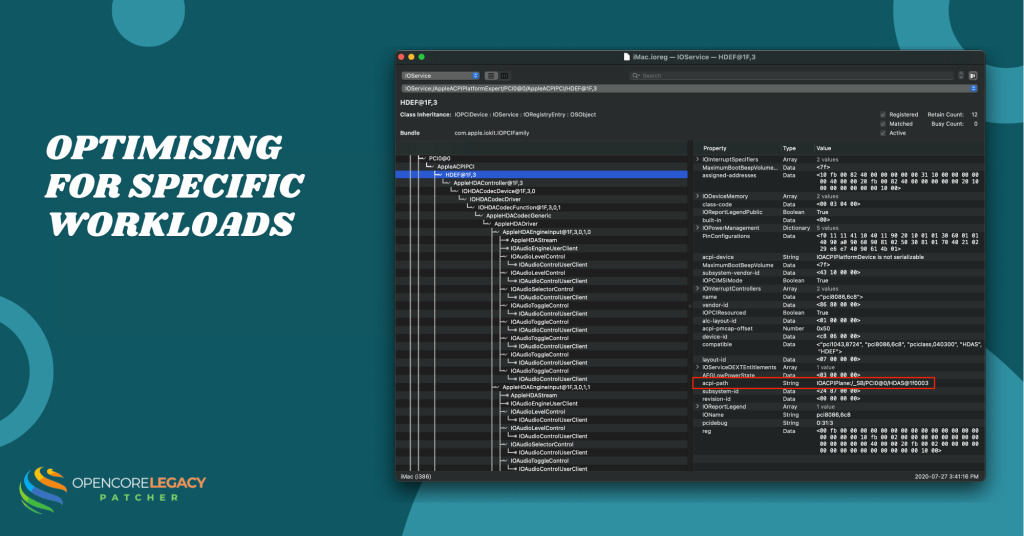
Optimising for Specific Workloads
Tailoring your OpenCore configuration to your specific daily tasks can prevent background processes from hogging the CPU.
Gaming and Emulation Configs
If you are trying to game on an older machine, you need to prioritise CPU availability over background system services. Specifically, if you are looking for the best settings for PUBG emulator or similar Android emulators, disable “Universal Control” and “Sidecar” in OCLP to save critical CPU cycles and encoding resources.
General Productivity
To optimise an old Mac with OpenCore for daily work, you need to ensure the system isn’t overworking itself to mimic incompatible hardware. In OCLP Settings > SMBIOS, ensure you are spoofing a model closest to your actual hardware generation to avoid unnecessary power management overhead.
Advanced Boot & Kernel Settings
For experienced users, changing boot arguments (special commands for starting the operating system) and kernel extensions (additional software modules that add support for hardware or features in macOS) can make your Mac start up faster and feel more responsive.
Verbose Mode and Boot Arguments
In the OCLP “Build” settings, you can uncheck “Verbose” boot (text scrolling at startup). This slightly speeds up the boot visual experience, providing a cleaner startup that doesn’t affect raw OS speed but looks more polished.
Disabling Unused Kexts
For optimal OCLP performance, advanced users can manually exclude kexts for hardware they don’t use. This prevents the system from loading drivers for ports like FireWire or Thunderbolt if you never use them, streamlining the boot process.
Maintenance for Sustained Speed
Performance isn’t just about settings; it is about maintaining the system after updates to prevent slowdowns.
Keeping Caches Clean
After every OpenCore legacy patcher update or root patch, the system rebuilds the kernel cache, which is vital for speed. If the system feels slow immediately after an update, give it 15 minutes for Spotlight indexing and cache rebuilding to finish.
Regular Updates
Always check the latest OpenCore legacy patcher release notes for performance-related changes. Developers frequently release “hotfixes” to address performance regressions in specific models, ensuring your machine stays fast over time.
Frequently Asked Questions (FAQ)
Does the Nightly Build make my Mac faster?
The open-core legacy patcher nightly build can make your Mac faster if it includes a specific fix for your GPU drivers that hasn’t yet reached the main release. However, for most users, the stable release is more consistent.
What are the best settings for the PUBG emulator on a patched Mac?
To run heavy apps like a best settings for pubg emulator scenario, you should enable “Reduce Transparency” in macOS, keep your laptop plugged in, and ensure OCLP has applied all “Graphics Acceleration” root patches. Close all background apps, such as Chrome, before launching the emulator.
How do I check if my OCLP settings are applied correctly?
If your Dock is transparent and animations are smooth, your OpenCore legacy patcher graphics settings are working. If the Dock is opaque and grey (and you haven’t enabled “Reduce Transparency”), you likely need to re-run the Post-Install Root Patch.
Will these settings make a 2010 MacBook Pro run like a 2020 Mac?
No settings can match new hardware, but these tips minimise software slowdowns, making old Macs usable for common tasks.