
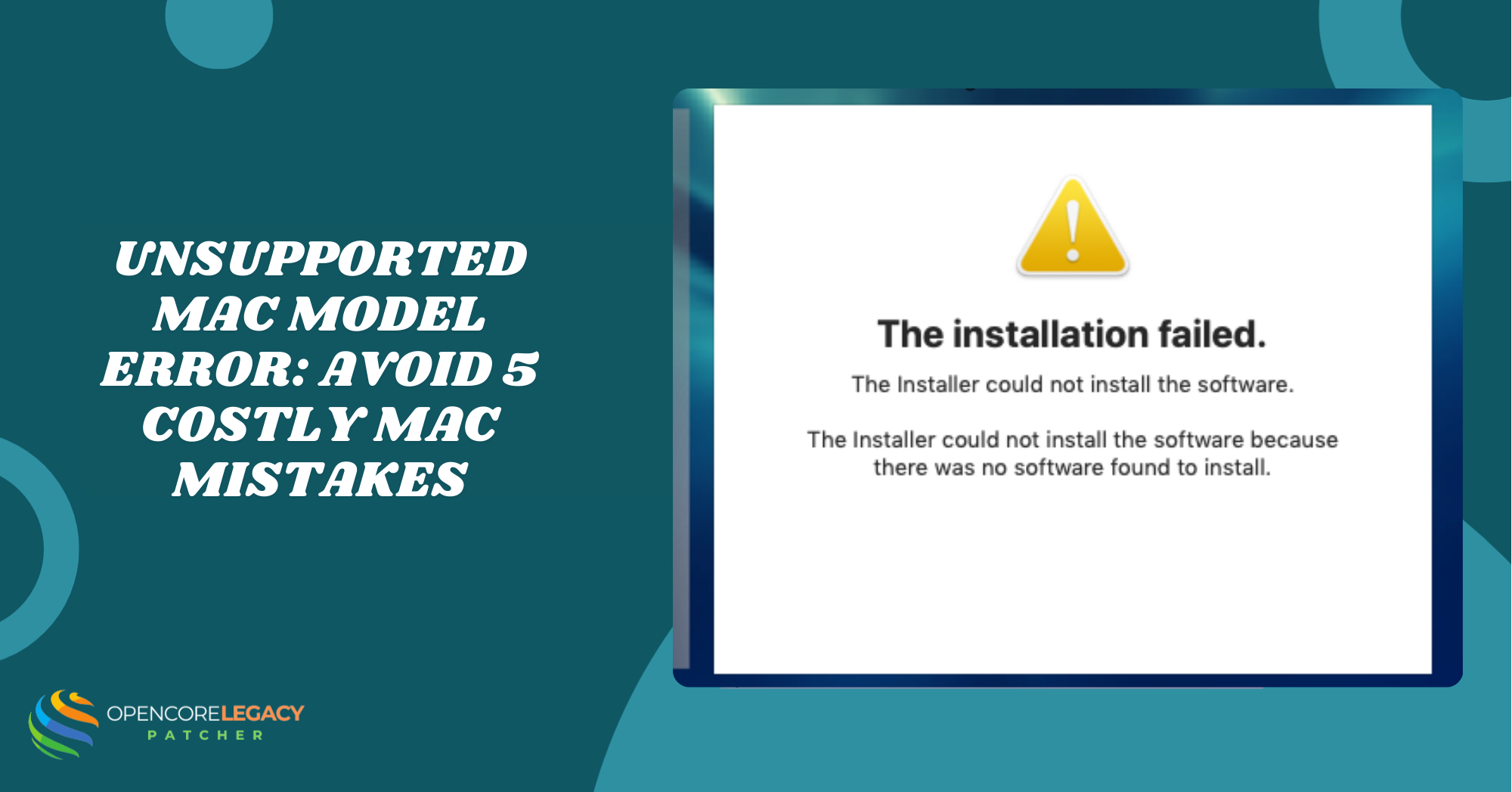
Introduction: How To Unsupported Mac Model Error
If you’ve ever tried using OpenCore Legacy Patcher on an older Mac, you might have seen the dreaded “unsupported Mac model” error. This usually happens because macOS isn’t officially compatible with your hardware, or specific system checks in OpenCore detect issues before installation.
That’s why running thorough model checks and performing proper diagnostics is so important; it helps you understand what’s safe and what might cause problems. Luckily, there’s also safe model spoofing, a clever way to trick the system into thinking your Mac is compatible, without putting your data or stability at risk. Following these steps carefully can make the whole process smoother and keep your legacy Mac running happily.
Understanding OpenCore Legacy Patcher Unsupported Mac Error
OpenCore Legacy Patcher can label some Macs as unsupported because it checks if your system meets the requirements for macOS. Older machines often lack features that newer macOS versions need. Knowing this helps you avoid installation problems and plan safe steps to get macOS running.
What Causes Unsupported Mac Model Error in OpenCore Legacy Patcher
This error usually happens due to a few main reasons:
- The Mac is older and doesn’t meet macOS requirements.
- Firmware or EFI settings are not aligned with OpenCore’s needs.
- The system’s SMBIOS information doesn’t match supported Mac models.
Understanding the reason makes it easier to fix the issue or apply safe tweaks.
How macOS Compatibility Impacts Older Mac Models
Older Macs might not support specific processors, graphics, or firmware updates required by the latest macOS. This can lead to installation failures, slow performance, or crashes. Checking compatibility beforehand ensures smoother installation and better stability.
Importance of Model Checks Before Installation
Before installing OpenCore, it’s essential to check your Mac’s model. It helps you:
- Verify hardware and firmware compatibility.
- Prevent boot failures or installation errors.
- Decide if safe model spoofing is necessary.
Skipping these checks can cause wasted time and potential system issues.
What Is Model Spoofing in OpenCore Legacy Patcher
Model spoofing in OpenCore Legacy Patcher is a technique that lets your Mac appear as a newer, supported model. This helps bypass the “unsupported Mac model” error so you can install macOS versions that your Mac wouldn’t normally allow. It’s a safe way to extend the life of older Macs without modifying hardware.
Explanation of Mac Model Spoofing and Safe Limits
When you spoof your Mac model, you tell the system that your hardware is a supported version. Safe limits mean changing the model identity only within ranges that macOS can handle without crashing. Going beyond these limits can lead to system instability or boot failures.
Risks vs Benefits of Spoofing Unsupported Macs
Spoofing can be helpful, but it has trade-offs:
- Benefits: Install a newer version of macOS, keep your Mac up to date, and maintain usability.
- Risks: System crashes, boot loops, incompatibility with certain apps, and potential firmware conflicts.
Weighing these factors ensures you use spoofing safely and avoid major issues.
Step-by-Step Guide to Safely Spoof Mac Models
To spoof your Mac safely:
- Check your Mac model and confirm it’s eligible for spoofing.
- Use OpenCore Legacy Patcher’s built-in tools for safe SMBIOS adjustments.
- Backup EFI and macOS data before making changes.
- Apply changes gradually and test booting before complete installation.
Following these steps minimizes risks and keeps your Mac stable.
Diagnosing OpenCore Installation Issues on Unsupported Macs
Installing OpenCore on older Macs can sometimes be tricky, especially if the system flags your Mac as unsupported. Diagnosing issues early helps prevent failed installations and system instability. By understanding common errors and checking configurations, you can troubleshoot problems before they become serious.
Common Installation Failures Linked to Unsupported Mac Models
Unsupported Macs may experience issues such as boot loops, freezes, or crashes during installation. These failures often occur because the Mac’s hardware or firmware doesn’t meet macOS requirements, or because SMBIOS settings are incorrect. Knowing these common issues makes it easier to pinpoint the cause and fix it safely.
How to Verify EFI Configuration and Bootloader Settings
Checking your EFI folder and bootloader settings is essential for a successful OpenCore installation. Ensure that all drivers, kexts, and config files are correctly placed and updated. Proper EFI setup prevents boot errors and improves overall system stability on older Macs.
Using Logs to Identify Unsupported Model Conflicts
OpenCore generates logs that can reveal why a Mac is flagged as unsupported. Reviewing these logs helps you see errors related to hardware, firmware, or SMBIOS mismatches. Using this information, you can make targeted adjustments to fix conflicts without guessing.
Preparing Your Mac for OpenCore Legacy Patcher
Getting your Mac ready before installing OpenCore is key to avoiding errors. Proper preparation ensures a smoother installation and reduces the risk of boot failures or data loss. Taking a few careful steps can save a lot of time and frustration later.
Checking Hardware and Firmware Requirements
Before starting, make sure your Mac meets the basic hardware and firmware needs for OpenCore.
- Confirm processor and GPU support.
- Check available RAM and storage space.
- Ensure your Mac’s firmware is up to date.
Verifying these requirements prevents installation issues and improves system stability.
Backing Up EFI Folder and macOS Data
Backing up is essential to protect your system.
- Copy the EFI folder to an external drive.
- Make a full macOS backup using Time Machine or another tool.
This ensures you can recover your Mac if something goes wrong during installation or spoofing.
Recommended USB Drive Specifications for Safe Installation
Using the right USB drive speeds up and safeguards the installation process.
- Choose a USB 3.0 or higher drive for speed.
- Ensure it has at least 16GB of storage.
- Format it as Mac OS Extended (Journaled) or APFS if required.
A proper USB drive reduces the chance of installation failures and data corruption.
Fixing Unsupported Mac Model Error
If OpenCore Legacy Patcher flags your Mac as unsupported, you don’t need to panic. With careful adjustments and the right approach, you can safely make your Mac compatible with newer macOS versions. Understanding which settings to tweak is key to avoiding crashes and boot problems.
Applying Safe Model Spoofing in OpenCore Legacy Patcher
Safe model spoofing allows your Mac to appear as a supported model without risking stability. Use OpenCore’s SMBIOS tool and stick to models recommended for your hardware. Test booting after each change to make sure everything works properly. This method helps you enjoy newer macOS features safely.
Adjusting SMBIOS Settings for macOS Compatibility
Adjusting SMBIOS is important so macOS recognizes your Mac correctly. Match your spoofed model to a supported version and carefully update any related serial numbers. Staying within safe limits keeps your Mac stable and prevents unexpected crashes.
Troubleshooting Black Screen, Boot Loop, and Freezing Issues
Older Macs can face boot problems after spoofing or installation. Check that your EFI folder is correctly set up and that all required drivers are installed. Resetting NVRAM or booting in safe mode often fixes freezes or black screen issues. These simple steps usually restore regular operation.
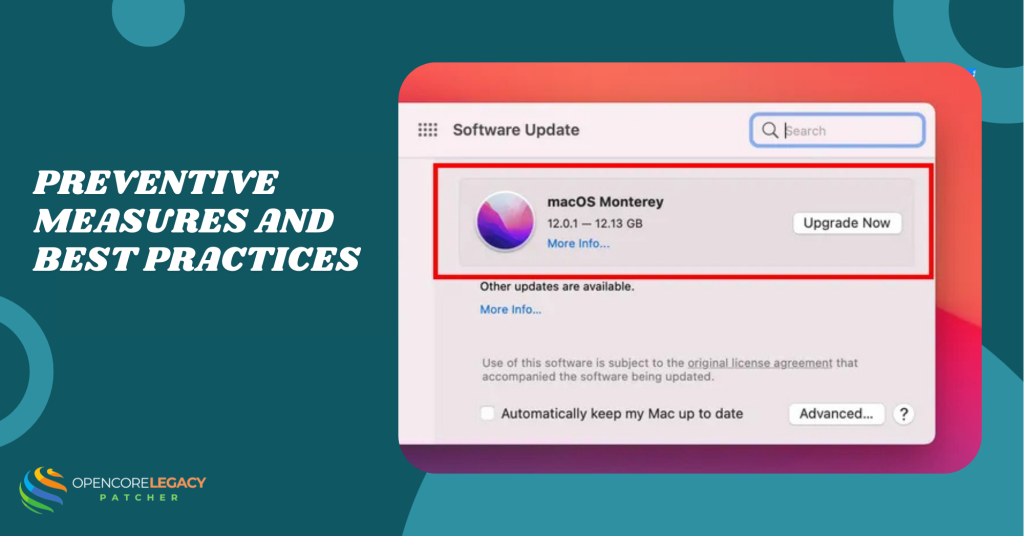
Preventive Measures and Best Practices
Taking preventive steps can save a lot of trouble when using OpenCore Legacy Patcher on older Macs. Regular maintenance, careful updates, and safe practices help your Mac run smoothly and reduce the risk of installation errors or system crashes.
Updating OpenCore Version to Avoid Compatibility Errors
Keeping OpenCore Updated ensures you have the latest fixes and support for newer macOS versions. Updates often include improved compatibility checks and bug fixes that prevent unsupported Mac errors. Regularly checking for new OpenCore releases keeps your system stable and secure.
Regular Backup and Recovery Plans for Legacy Macs
Backing up your Mac is essential, especially when installing or updating macOS.
- Use Time Machine or another backup tool to save your data.
- Keep a copy of the EFI folder on an external drive.
- Plan a recovery method in case something goes wrong.
- This ensures you can restore your Mac quickly without losing important files.
Staying Within Safe Hardware and Software Limits
Older Macs have limits on what hardware and software they can handle. Avoid pushing your system beyond recommended settings or spoofing models too far from your actual Mac. Staying within safe limits helps prevent crashes, freezes, and long-term stability issues.
Conclusion
Dealing with the “unsupported Mac model” error in OpenCore Legacy Patcher doesn’t have to be stressful. By performing proper model checks, applying safe spoofing, and backing up your EFI and macOS data, you can safely extend the life of your older Mac.
Following best practices and staying within recommended hardware and software limits ensures smooth performance and reduces the risk of installation problems. With careful preparation and attention to detail, even legacy Macs can reliably enjoy the latest macOS features.
FAQs – OpenCore Legacy Patcher Unsupported Mac Model
Why does OpenCore Legacy Patcher say my Mac is unsupported?
OpenCore checks your Mac’s hardware, firmware, and SMBIOS against supported macOS versions. Older Macs may lack certain features, which can trigger the unsupported model error.
Can I safely spoof my Mac model without risking macOS stability?
Yes, if done within safe limits. Using OpenCore’s recommended SMBIOS settings and testing booting after each change helps avoid crashes or system instability.
What macOS versions are compatible with older unsupported Macs?
Compatibility depends on your Mac model and hardware. Generally, Macs from 2012 or earlier may need OpenCore to run newer macOS versions beyond official support.
How can I run OpenCore Legacy Patcher on my Mac?
You can check your Mac’s model identifier, firmware version, and hardware specs. OpenCore Legacy Patcher provides tools to verify compatibility before installation.
Will unsupported Mac errors affect my data or apps?
No, these errors only prevent installation or booting. Your existing macOS and apps remain safe, but it’s always recommended to back up before making changes.
How do I fix the black screen after spoofing my Mac model?
Check your EFI folder for missing or incorrect drivers and kexts. Reset NVRAM and try booting in safe mode if the screen stays black.
Can OpenCore Legacy Patcher automatically detect unsupported firmware?
Yes, OpenCore scans your Mac’s firmware and alerts you if it doesn’t meet requirements. This helps prevent incompatible installations.
What are the risks of bypassing model restrictions in OpenCore?
Bypassing restrictions can lead to system crashes, boot loops, app incompatibility, or firmware conflicts. Staying within safe spoofing limits minimizes these risks.
Read More:









