Table of Contents
ToggleIntroduction: OpenCore USB Not Booting on older Mac Fix
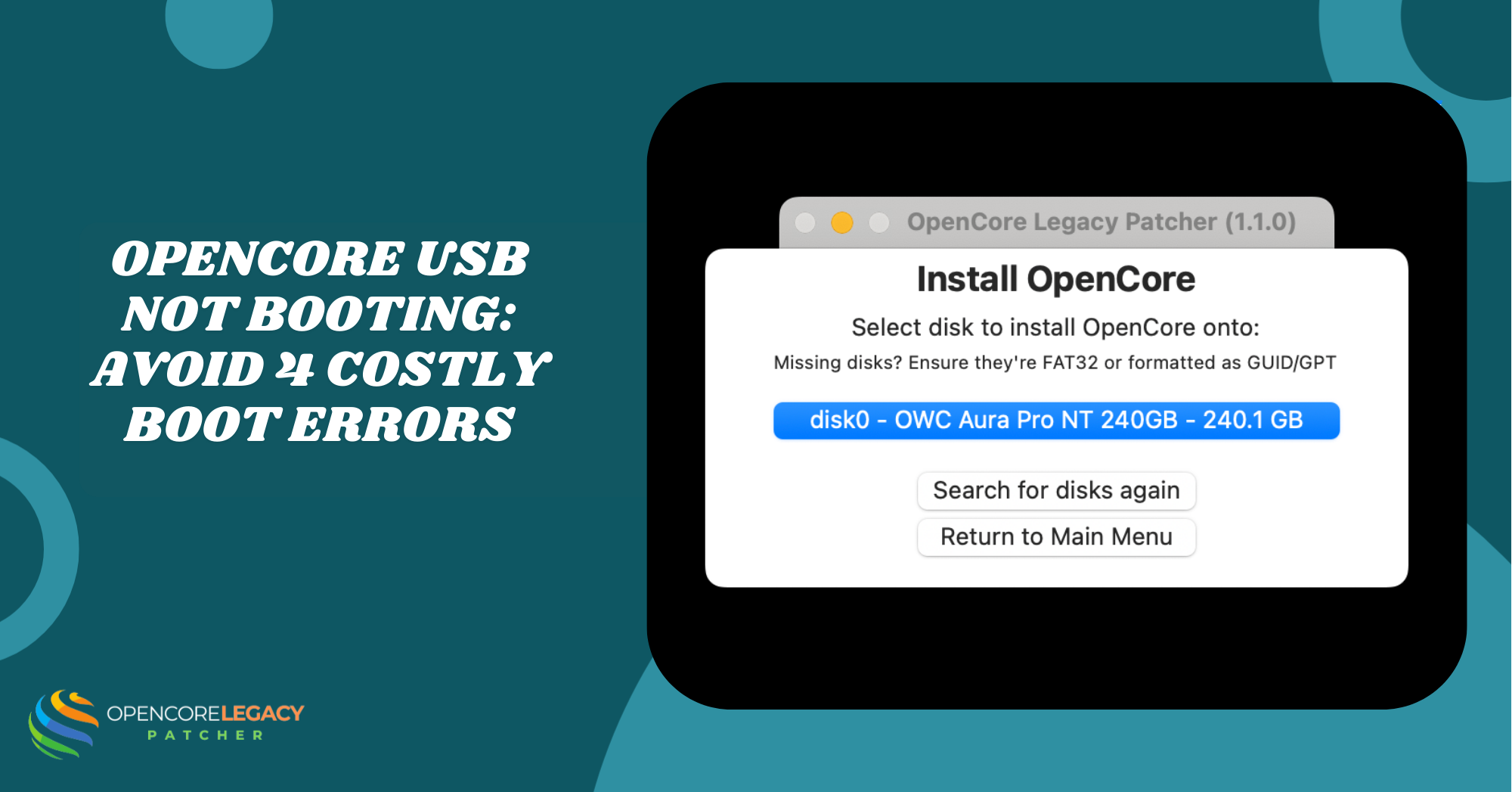
If you’re trying to breathe new life into an older Mac, OpenCore Legacy Patcher is your go-to tool. It helps you run newer macOS versions even on unsupported machines, but sometimes the USB won’t boot, leaving you stuck. These hiccups often happen because of small mistakes during USB creation or overlooked settings in the boot picker. Checking your Mac’s BIOS and making sure the USB is set up correctly can save you a lot of frustration and quickly get your legacy Mac patching back on track.
What Causes OpenCore Legacy Patcher USB Boot Failures
Several factors can prevent your OpenCore Legacy Patcher USB from booting on older Macs. Often, it’s not a single problem but a mix of issues that need careful checking.
Common boot errors and their implications
Boot errors such as a black screen, a stuck loading bar, or a kernel panic usually signal EFI configuration problems or corrupted installer files. These errors can prevent your older Mac from recognizing the USB device and thus prevent macOS installation.
USB creation mistakes that prevent booting
Many USB boot failures happen because of simple mistakes during setup:
- Using the wrong partition scheme (MBR instead of GUID)
- Incorrect formatting or file system type
- Missing OpenCore EFI files or a corrupted macOS installer
- These minor issues can cause the USB device to go missing from the boot picker.
Compatibility issues with older Mac firmware
Older Macs have firmware limitations that can prevent newer macOS versions from installing. Some models need special patches in OpenCore EFI to boot correctly. Without these adjustments, the Mac might ignore the USB or freeze during startup.
macOS version limitations and their effects
Not every macOS version works on all older Macs. Installing a version that’s too new without proper patching can cause installer crashes or system instability. Always check which macOS versions are compatible with your Mac model before creating the USB.
Preparing Your USB for OpenCore Legacy Patcher
Getting your USB ready is a key step to Installing OpenCore Legacy Patcher. A well-prepared USB drive makes installation smoother and reduces errors on older Macs.
Choosing the right USB drive for macOS patching
Not all USB drives perform the same. For best results:
- Use a fast USB 3.0 drive with at least 16GB capacity
- Avoid old or low-quality drives that can cause read/write errors
- Make sure the drive is reliable, as corrupted drives often fail during legacy Mac patching
Formatting USB correctly for OpenCore boot
Proper formatting is crucial:
- Use the GUID Partition Map for the scheme
- Format as Mac OS Extended (Journaled) or APFS, depending on macOS version
- Name the USB clearly to avoid confusion during boot selection
Downloading the latest OpenCore Legacy Patcher version
Always use the latest version to ensure compatibility with your Mac firmware and the macOS you want to install. Newer versions fix bugs, improve EFI settings, and reduce installer crashes.
Copying macOS installer and patcher files to USB
Once formatted, carefully copy the installer and patcher files to the USB. Make sure:
- All EFI files are in the correct folder structure
- No files are missing or corrupted
- The USB is ready to be recognized by the boot picker on your older Mac
Related Article: How to use OpenCore Legacy Patcher without USB
BIOS / Boot Picker Checks Before Booting
Before booting from your OpenCore Legacy Patcher USB, check the BIOS and boot picker. These steps ensure your older Mac recognizes the USB and prevents installation errors.
Accessing the boot picker on older Macs
To access the boot picker, restart your Mac and hold the Option (⌥) key. This will display all available drives, including your USB if prepared correctly. Missing the USB here usually points to formatting or EFI issues.
Verifying EFI settings for OpenCore compatibility
Proper EFI configuration is critical. Ensure the OpenCore EFI folder contains the correct drivers and configuration files for your Mac model. Incorrect settings can cause boot failures, black screens, or freezes during startup.
Ensuring the correct startup disk selection
Always select the USB as the startup disk in the boot picker. Choosing the wrong disk can make the Mac boot into the existing macOS or fail, delaying the legacy Mac patching process.
Troubleshooting unrecognized USB drives
If your USB isn’t showing, check for common problems:
- Faulty USB ports or drive
- Missing EFI files or wrong folder structure
- Incorrect partition scheme or format
- Addressing these ensures your older Mac detects the USB and starts the macOS installer without errors.
Creating a Reliable OpenCore USB Installer
A properly created USB installer is the backbone of OpenCore Legacy Patcher USB boot success. Skipping steps here can lead to frustrating boot issues on older Macs.
Using a proper partition scheme (GUID vs MBR)
Always use the GUID Partition Map for macOS installations on older Macs. MBR can cause the system to ignore the USB completely, preventing the boot picker from recognizing it.
Installing OpenCore EFI correctly
Place the OpenCore EFI folder in the correct location on your USB. Make sure all drivers, config files, and kexts are included. Missing files or wrong paths often lead to EFI configuration errors.
Avoiding common mistakes during EFI configuration
Common mistakes include:
- Using the wrong config.plist for your Mac model
- Forgetting necessary drivers or kexts
- Misnaming EFI files or folders
- These minor errors can stop your Mac from booting the installer, causing delays in legacy Mac patching.
Checking the USB for hidden errors or corrupted files
Before booting, verify the USB for corruption. Use disk utilities to check for bad sectors or file errors. A clean, error-free USB reduces the chances of macOS installer crashes during setup.
Booting OpenCore USB on Older Macs
Booting from your OpenCore Legacy Patcher USB on an older Mac requires careful steps to avoid startup problems and ensure a smooth macOS installation.
Steps to start macOS installation via OpenCore
Restart your Mac and hold the Option (⌥) key to access the boot picker. Select your USB drive with OpenCore and wait for the macOS installer to load. Make sure all EFI files are intact for a seamless boot.
Handling a black screen or freezing during boot
If the screen stays black or the system freezes, it often points to EFI configuration issues or USB creation mistakes. Double-check drivers, kexts, and the macOS installer to resolve this.
Resetting NVRAM and SMC to fix boot issues
Resetting NVRAM and SMC can clear cached settings that block the USB from booting. This simple step often fixes recognition problems and prevents installation crashes on older Macs.
Using verbose mode for error diagnosis
Enable verbose mode by adding the -v flag in OpenCore. This shows detailed startup logs, helping you identify USB boot issues, kernel panics, or installer crashes, making troubleshooting much easier.
Troubleshooting Common OpenCore USB Issues
Even with a perfectly prepared USB, older Macs can still run OpenCore Legacy Patcher USB. Knowing how to troubleshoot common problems saves time and frustration.
Fixing USB not detected by the boot picker
If your USB doesn’t appear in the boot picker:
- Check the USB port and try another one
- Confirm the GUID partition scheme and correct format
- Make sure the OpenCore EFI folder is correctly placed
- These steps usually help your older Mac recognize the USB for installation.
Resolving kernel panic or installer crashes
Kernel panics or macOS installer crashes often result from missing kexts, incompatible macOS versions, or EFI misconfigurations. Updating drivers and verifying the correct config.plist for your Mac model usually resolves these errors.
Ensuring macOS installer integrity
A corrupted installer can stop your installation mid-way. Always verify:
- The installer is fully downloaded from a trusted source
- No files are missing in the USB
- Disk utility checks confirm the USB has no errors
- This ensures the installer runs smoothly without crashes.
Updating OpenCore for legacy Mac models
Older Macs sometimes require updated OpenCore versions for newer macOS. Keeping OpenCore up to date ensures better EFI compatibility, reduces boot errors, and enables effective legacy Mac patching.
Advanced Tips for Smooth Installation
Once your OpenCore Legacy Patcher USB is ready, these advanced tips can make installation on older Macs faster, smoother, and less stressful.
Using debug logs for error identification
Debug logs help you pinpoint USB boot issues or macOS installer crashes. Enable logging in OpenCore to track errors during boot, making troubleshooting much easier and more precise.
Best USB drives for high success rates
Choosing the right USB drive can make a big difference:
- Prefer fast USB 3.0 or higher drives
- Avoid old or low-quality drives that may fail during legacy Mac patching
- Reliable brands reduce the chance of corrupted files and improve installation success
Keeping macOS patched post-installation
After installing macOS, stay up to date with patches to prevent crashes and maintain performance. Regular updates and keeping OpenCore EFI up to date ensure your older Mac runs smoothly with newer macOS versions.
Community tools and support for legacy Macs
Leverage forums, Discord servers, and GitHub communities for guidance. Experienced users share solutions for boot picker checks, EFI configuration fixes, and installer issues, helping you troubleshoot faster and smarter.
Conclusion
Getting your OpenCore Legacy Patcher USB to boot on an older Mac can seem tricky, but with the proper steps, it’s completely doable. Paying attention to USB creation, EFI configuration, and boot picker checks makes a huge difference. By adequately preparing, troubleshooting common issues, and using advanced tips, your older Mac can run newer macOS versions smoothly. With patience and the proper guidance, legacy Mac patching becomes a fun and rewarding project rather than a frustrating struggle.
FAQs – OpenCore Legacy Patcher USB Boot Problems
Why is my OpenCore USB not showing in the boot picker?
This usually happens due to USB formatting errors, missing EFI files, or an incorrect partition scheme. Make sure the USB is formatted as GUID, has all required OpenCore files, and is plugged into a working port.
How do I fix a black screen when booting from OpenCore?
A black screen often points to EFI configuration issues or missing drivers. Double-check that your config.plist matches your Mac model and that all kexts are correctly installed. Using verbose mode can help identify the exact problem.
Can I use any USB drive for OpenCore installation?
Not all USB drives perform well. Fast USB 3.0 drives with at least 16GB capacity are recommended. Low-quality or old drives can cause USB boot issues or installer crashes.
What macOS versions are supported on older Macs?
Older Macs can only run macOS versions compatible with their hardware. Using OpenCore Legacy Patcher extends support, but always verify the version before creating the USB to avoid installation failures.
How to reset NVRAM and SMC for OpenCore boot issues?
Resetting NVRAM clears cached boot settings, and SMC reset fixes hardware-level issues. On Intel Macs, restart and hold Option + Command + P + R to reset NVRAM, then follow Apple’s guide for an SMC reset. This often resolves USB recognition or boot problems.
Why does my Mac keep freezing during the OpenCore installer?
Corrupted installer files, missing kexts, or incorrect EFI settings can cause freezing. Verify your USB drive, update OpenCore, and ensure all necessary patches for your Mac model are applied.
How can I verify that my USB installer was created correctly?
Check that all EFI files and macOS installer files are present and in the correct folder structure. Use Disk Utility to verify the USB for errors and confirm the proper partition scheme.
Is it safe to force-reboot when the OpenCore installer hangs?
Forcing a reboot is generally safe if the installer is unresponsive, but make sure to check the USB and EFI configuration first. Repeated forced restarts without fixing the underlying issues may cause installation errors.
Latest Posts:
- OpenCore Legacy Patcher USB not booting on older Mac
- Where Can Content Creators Add Visuals or Diagrams to Explain Patching Workflows?
- Best OpenCore Legacy Patcher settings for stability
- OpenCore Legacy Patcher Stuck On “Preparing Installation” – How To Fix
- Kernel panic on startup with OpenCore Legacy Patcher